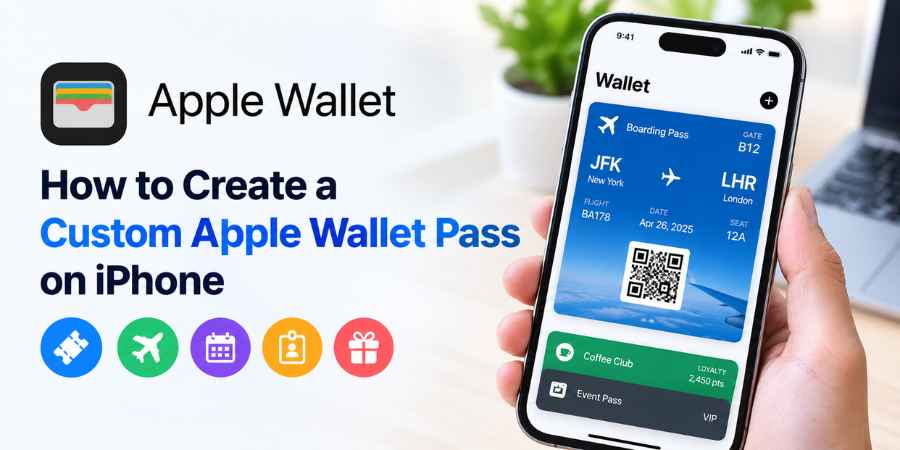
Apple now lets iPhone users create custom Apple Wallet passes directly in Wallet. Here’s how the new feature works, which iPhones support it, what you can customize, and where the limits are.
Creating a custom Apple Wallet pass used to be much more complicated than adding an airline ticket or loyalty card. In most cases, the business or organization had to provide an official Add to Apple Wallet option.
With iOS 27, Apple has changed that.
You can now create certain passes yourself from a physical card, photo, screenshot, barcode or QR code. Apple also provides a manual creation option with templates for standard, membership and event passes.
That makes Apple Wallet more useful for cards and passes that do not have official Wallet support.
Can You Create a Custom Apple Wallet Pass?
Yes. iOS 27 allows users to create custom passes directly in the Apple Wallet app. You can either create one manually or use an eligible barcode or QR code from a photo, screenshot or physical card.
Apple currently supports three manual templates:
- Standard
- Membership
- Event
The Standard template can be used for items such as gift cards, insurance cards and other passes that do not fit the membership or event categories.
This is different from the traditional system in which a company creates and digitally signs an official Wallet pass for its customers.
How Do You Create A Custom Pass Manually?
You can create a basic custom pass directly from the Wallet app without waiting for a company to provide an official pass.
Follow these steps:
- Open Wallet on your iPhone.
- Tap the Add Card (+) button.
- Select Create a Pass.
- Tap Create Pass Manually.
- Choose Standard, Membership or Event.
- Enter the information you want displayed.
- Customize available fields and the appearance.
- Tap the checkmark to add the pass to Wallet.
The finished pass appears in your Wallet alongside other passes and tickets.
The important change is that you no longer need an existing Wallet file from a business for these supported types of personal passes.
Can You Turn a Barcode Or QR Code Into an Apple Wallet Pass?
Yes. Apple can create a Wallet pass from a supported barcode or QR code in a photo, screenshot or physical card.
Apple’s current instructions allow you to open a photo containing a barcode or QR code and select Add Pass to Wallet when the code is recognized. You can also take a screenshot of a digital code or photograph a physical pass using the Camera app.
The basic process is:
- Open Photos.
- Select a photo or screenshot containing the barcode or QR code.
- Tap the Info button or swipe up.
- If Apple recognizes the code, tap Add Pass to Wallet.
- Edit the available information.
- Add the pass to Wallet.
You can also photograph an eligible physical card using the Camera app and add it to Wallet when the Add Pass to Wallet option appears.
Does Creating a Pass Require Apple Intelligence?
AI-assisted pass creation requires an Apple Intelligence-compatible iPhone, but manual pass creation does not require Apple Intelligence.
Apple’s current support documentation says the photo, screenshot and camera-based creation workflow requires Apple Intelligence. Apple lists the iPhone 15 Pro and later compatible models for this feature.
The manual Wallet workflow is different. Apple documents it separately and allows users to select a template and enter the information themselves.
That means an iPhone that cannot use the AI-assisted workflow may still be able to create a pass manually, depending on its iOS support.
What Can You Put On a Custom Wallet Pass?
The available information depends on the template and the type of pass you create.
Apple says users can edit certain fields and add information such as:
- Name
- Membership status
- Membership duration
- Location
- Other relevant text fields
- Barcode or QR-code information where supported
You can also change aspects of the pass’s appearance, including its background color.
The goal is to make information that you regularly carry on a physical card easier to access from your iPhone.
Which Passes Can You Create?
Apple’s examples include library cards, gym memberships, gift cards and insurance cards, although the exact options depend on the information contained in the source card or code and the template you select.
This makes the feature particularly useful for cards that meet three conditions:
- You regularly carry them.
- They contain information that can be displayed digitally.
- The business does not already provide an official Apple Wallet pass.
For an airline boarding pass, concert ticket or other supported ticket, however, the official issuer’s Wallet pass remains preferable.
Apple already supports adding eligible tickets and passes directly from apps, websites, emails and other communications using Add to Apple Wallet.
What is the Difference Between a Custom Pass and an Official Apple Wallet Pass?
A custom pass created by you is not necessarily equivalent to an official pass issued by a company.
An official Wallet pass is created by the issuer using Apple’s Wallet pass system. Developers can distribute official passes through an app, website or email, and Apple requires those passes to use the appropriate identifiers, certificates and signatures.
This distinction matters because an official pass can have capabilities that a manually created pass does not automatically receive.
For example, official passes can be designed to receive updates through Apple’s pass-update infrastructure. An issuer can update information such as an event time using the same pass identifier and serial number.
A manually created copy of information does not automatically gain those issuer-controlled capabilities.
Can a Custom Wallet Pass Replace a Ticket or Access Card?
Not always. A custom pass should not be assumed to replace an official ticket, hotel key, transit credential or access badge.
The biggest issue is how the original credential works.
A normal barcode or QR code can often be displayed on a phone and scanned. But some credentials rely on changing codes, authentication, NFC or other security mechanisms.
Apple specifically warns that some barcodes and QR codes change periodically. If you photograph a code that expires, such as a time-sensitive event ticket, the resulting pass may stop working.
NFC-based credentials are also different from ordinary barcodes. Apple provides developers with specific Wallet capabilities and entitlements for certain NFC functionality.
So a custom pass is best viewed as a convenient digital representation of eligible information, rather than a universal replacement for every physical credential.
What Happens If a Business Already Supports Apple Wallet?
Use the business’s official Wallet pass when one is available.
If an airline, retailer, event organizer, hotel or other company provides an Add to Apple Wallet button, adding that pass is generally better than photographing or manually recreating the information.
Official passes can contain information and functionality controlled by the issuer, including updates and other features supported by Apple’s Wallet platform.
For example, Apple supports eligible boarding passes in Wallet, including the ability to access and share certain flight information.
Why is Apple’s Custom Pass Feature Useful?
The main advantage is simple: you can bring unsupported everyday cards into Wallet without waiting for the issuer to build an official integration.
Before this feature, an unsupported membership card or gift card might remain in your physical wallet, a separate retailer app, a photo album or an email.
Now, eligible information can be organized inside Apple’s Wallet app.
That is particularly useful for people who carry several membership cards but rarely need the associated apps.
What Apple Wallet Still Cannot Do
The new feature has clear limits.
A custom pass does not automatically give you:
- A business’s official account integration
- Real-time updates from the issuer
- Automatic replacement when the original credential changes
- NFC functionality simply because the source card uses NFC
- Guaranteed acceptance by every scanner or business
- A way around an issuer’s security system
Apple’s own documentation makes clear that some Wallet functions depend on the issuer, supported technology and device capabilities.
The safest approach is therefore straightforward: use an official Wallet pass when the issuer provides one, and use Apple’s custom-pass tools for eligible cards and information that otherwise have no Wallet option.
Apple Wallet Custom Passes: What to Know
|
Feature |
Custom pass |
|
Create manually |
Yes |
|
Create from eligible barcode/QR code |
Yes |
|
Standard template |
Yes |
|
Membership template |
Yes |
|
Event template |
Yes |
|
Edit available fields |
Yes |
|
Change appearance |
Yes |
|
Apple Intelligence required for manual creation |
No |
|
Apple Intelligence required for AI-assisted photo/code creation |
Yes |
|
Automatic issuer updates |
No, unless provided through an official issuer system |
|
NFC capability automatically added |
No |
|
Guaranteed replacement for official credentials |
No |
Conclusion
iOS 27 makes custom Apple Wallet passes much easier to create. You can manually build a Standard, Membership or Event pass, or use a compatible barcode or QR code from a photo, screenshot or physical card. Apple Intelligence is required for the assisted photo and camera workflows, but not for manual pass creation.
The feature is most useful for everyday cards that do not already have official Wallet support.
It is not a universal replacement for official tickets, hotel keys, transit credentials or other secure passes. When a company provides its own Add to Apple Wallet option, that official version remains the better choice because it can support issuer-controlled updates and capabilities that a user-created pass cannot automatically reproduce.